Congrats babes!! Dubsado is one of my top 2 recommended CRMs for creative service providers (and the one I use now!!), so you truly made a great choice.
Whether you are new to CRMs entirely or just want to see where you could be upgrading your setup, I’m gonna give you the full rundown of how to maximize your experience in Dubsado.
The first thing we’re gonna do in Dubsado is click on our profile icon and update our settings. Once you’re in settings, Business Info will be the first page to review — then you can hover over that label and click through each additional category. This might not be the “fun” part, but it helps make sure everything else runs smoothly.
Now let’s talk about the four life changing functions of Dubsado 🥵
- Forms
- Schedulers
- Email Templates
- Workflows
Obviously Dubsado also gets you paid, but all of these things are integral in helping you get there.
More than just an inquiry form
Before I get on my soapbox about inquiry forms, it’s important to note that “form” is kind of a loose term in Dubsado, and includes more than just inquiry forms and questionnaires. This is also where you will create your proposal and contract templates.
But before we talk about those, I will, in fact, get on my soapbox about inquiry forms—because if your website has an inquiry form on it that’s through your website host, it’s time for a major upgrade 💅🏼
I beg you to let me introduce you to the magic of an embedded form. This may sound complicated, but all it really means is that a form you created in Dubsado shows up on your website — this is PERFECT for lead forms, because then all your inquiries go straight into Dubsado instead of into your inbox (and otherwise into the ether).
In Forms Builder, you can create a Lead Capture form, with all the information you want to collect from a new lead. To add new questions & elements, you can drag and drop from the builder sidebar, decide if they’re required, and edit the options. Once you have all your questions built, click through the Settings & Styling tabs in the builder sidebar to adjust your confirmation message, and set your base colors.
Once you’ve saved your changes and your form looks the way you want it to, go to the “Sharing” tab in the builder sidebar, and in the Embed Code box, there will be a big scary line of code. You do not need to know anything about coding—you just have to click the button that says “Copy Code.”
Then, in your website host (Showit, Squarespace, etc.), you’re going to go to where you want that form (i.e. a contact page), insert a new HTML block, and CTRL+V paste that code from Dubsado into that box. Adjust the size of your block as needed so the whole thing shows up right on your website and BOOM. All that info is goind straight to Dubsado, baby!!!
Other Forms
Up next, the more “file” type form templates. Proposals. Contracts. Sub-agreements. The cool part about Dubsado is that these can literally be sent in ONE file. Did someone say streamlined??? 🙂↕️
If you have a PDF version of a current proposal or contract, you can start by uploading that in “New File Template,” and editing from there.
If you are stating from scratch, click New File Template and select “Start from scratch,” then select what type of file you want to create.
“What files do I need???”
Glad you asked! I generally recommend one proposal and one contract for each type of service you offer.
Proposals should include all the info about what a client gets with that package, why they need it, and it should answer some commonly asked questions to help them say YES to hiring you.
Let’s get clients scheduled
Once your inquires or books, one of your next steps is likely to hop on a call.
If you use a Google, Apple, or Outlook calendar to keep track of your life, you’ll want to open “Events” and hover over the title at the top that says “Calendar.” From here you can sync your personal calendar so you don’t get double booked over all the other life things!!
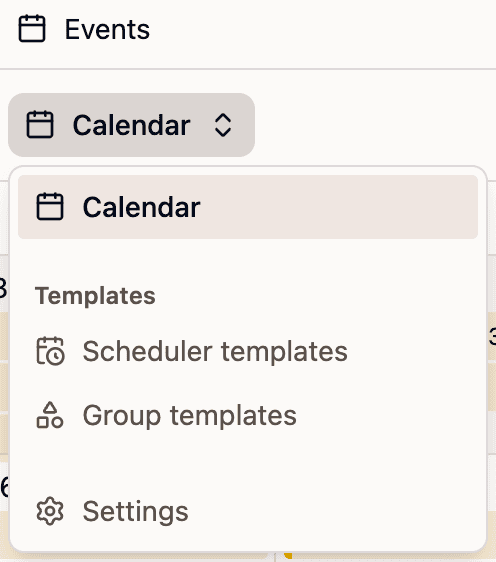
To create a scheduler that lets clients find a time to book with you, hover over that title again and click “Scheduler Templates.” The “+” icon will let you create a new Scheduler Template. From here you can enter the meeting details: duration, location, description; and edit your general availability for that meeting type (because you connected your calendar, you will not show as available during conflicts on your calendar), and how far in the future you want clients to be able to schedule.
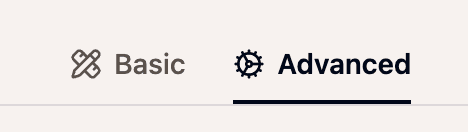
If you’d like to add a required payment for the call, limits for this type of booking, or a form to collect additional information upon booking—you can do so in the “Advanced Settings” tab.
To determine how many and what types of scheduler templates you’ll need, I recommend writing down a list of your services, and what calls are included in each package—then create one scheduler for each meeting type. If you have two services that both have an hour-long kickoff call, I recommend creating one (i.e. “Web Design Kickoff Call”), and then duplicating it with the name of your other service (i.e. “Branding Kickoff Call”), so there is a clear differentiation when these show up on your calendar.
Once you have your schedulers set up, you will be able to include these Smart fields in your email templates and forms 💃
Email Templates
Email templates are the secret sauce of a CRM. Why? Because they allow you to be in multiple places at once.
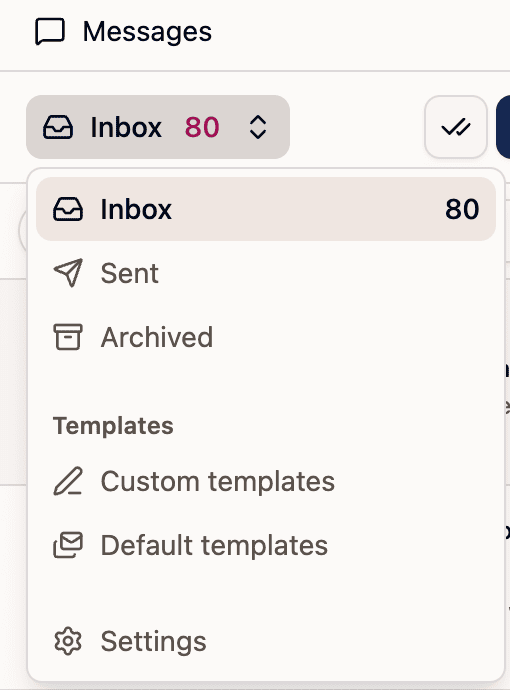
In Dubsado, you create these through the Messages tab in the left sidebar. Once in Messages, you’ll hover over the “Inbox” title at the top and select either “Default templates” (to edit Dubsado’s default templates) or “Custom templates” to create your own.
If your services are well established and you already follow a repeatable workflow, odds are, you have some past emails you can mooch from to create email templates for your services. I recommend walking through one of your services at a time, mapping out each email touchpoint, and creating a template for each.
If you’re still figuring it all out and aren’t ready to take that leap yet, here are a few key emails to start with:
- Inquiry Response — a little “hey I got your inquiry & I can’t wait to chat! here’s some more info while I review your responses” goes a long way
- Any of those big details emails — before a shoot or a wedding, where you have to include event details/addresses/color paletes/etc. Give yourself a template to make your life easier, okay?
- Review Email — ooh I know how much you hate sending the dreaded review request email, but by creating a template that you like, you can literally never have to think about (and feel awkward about) this again!!
Now, I mentioned Smart fields before: to further personalize your emails, you can click on the Smart fields icon, and add client or your company information, so your email can say things like, Hi {{First Name}}!!
“But I don’t want to sound like a robot”
You know what sounds like a robot? An email written by ChatGPT.
You know what sounds like YOU? An email template, written by you, exactly the way you would’ve said it if you were typing it straight off the dome. And it can be sent or drafted whether you’re there to do it or not.
And to tie it all together, let’s talk workflow automation (aka Flows).
While it may sound scary, a “workflow” is just the sequence of steps you go through in a client project, and “automation” is usually just saying “if this thing happens, this other thing should happen.”
So you have your inquiry form & your inquiry response email template — let’s walk through how we can tie these together with Dubsado Flows.
In the Flows section, you can create new by clicking on that same “+” icon.
In Dubsado, you first select what action step you want the automation to complete: in this case, that’s “Send Email.” To select your template, click on the dotted message bubble icon at the bottom of the message box, and find your inquiry response template. Make sure manual approvals are turned OFF for this step, and set the automation to run either the default (0 days after previous step) or up to 5 minutes after the submit their inquiry, depending on your preference.
I like to follow this up with Dubsado drafting me an email follow-up with a scheduler that I can fire off right after I’ve had the chance to actually review their inquiry. To do so, I make the next step in the flow “Send a Scheduler,” and select my Discovery Call scheduler template and my inquiry follow-up template using the same method as above.
For it to be created as a draft rather than sent automatically, you will toggle ON “Require manual approval to complete this action.”
Okay so you CREATED your workflow, now how do you attach it to your form???
To do that, you will want to go back into Forms and into your Lead form template, open settings, and select the flow you just created as your “Default flow,” and either (1) type a thank you message you want viewable to your lead upon form completion or (2) add a redirect link to send your lead back to a page on your website upon completion.
BOOM. They have some new information in their hands, they know their inquiry landed in your inbox, and you just gave yourself a buffer to review and an email already drafted to respond with 💃
And you can apply this same principle to other parts of your workflow! A discovery call is booked? Automate an email draft with a proposal, contract, and invoice. Project marked complete? Automate that review email, baby!!
Okay I’m overwhelmed now. Can I just have someone else do this?
Literally so glad you asked. This resource is always here if you need it, but so am I! I offer full Dubsado Setups (your offer, start to finish, with all the email and doc templates/automations/etc.) and Sprints (a quick build of one part of your process—onboarding, offboarding, etc.), and I would LOVE to work with you.


